Verification codes
Binance Email Verification Code Not Received: What to Check
Check the destination, folders, mailbox sync and forwarding. Use the matching section for a sending error or an Apple private relay address.
No Binance code in your inbox? First check the address shown on the verification screen and open that mailbox. Search its folders before requesting again. If the page reports a sending error, or you used Apple's private forwarding address, use the relevant section below.
Which problem do you have?
- No message anywhere: start with the destination address, then check folders and mailbox access.
- A message arrived, but its code is rejected: use verification code invalid or expired. Finding an email and having a valid code are separate questions.
- The page reports a sending error or asks you to wait: go to the request check. Searching the inbox cannot resolve a button that has not completed its request.
- The address ends in @privaterelay.appleid.com: read the Apple forwarding section before assuming you typed the wrong address.
Binance's missing-email guidance covers mailbox access, spam, storage and common email providers. We checked it on 19 September 2026. Its account Security settings require an existing account; during an unfinished sign-up, use the address and options actually shown on your current screen.
Check the destination address
Open your mailbox account details and compare the full address with the verification page, checking letters, numbers and the domain ending. If the page masks part of the address, check the visible characters and look for an option to go back and confirm the full entry. If you still cannot tell, explain to official support that the masked destination prevents a complete comparison.
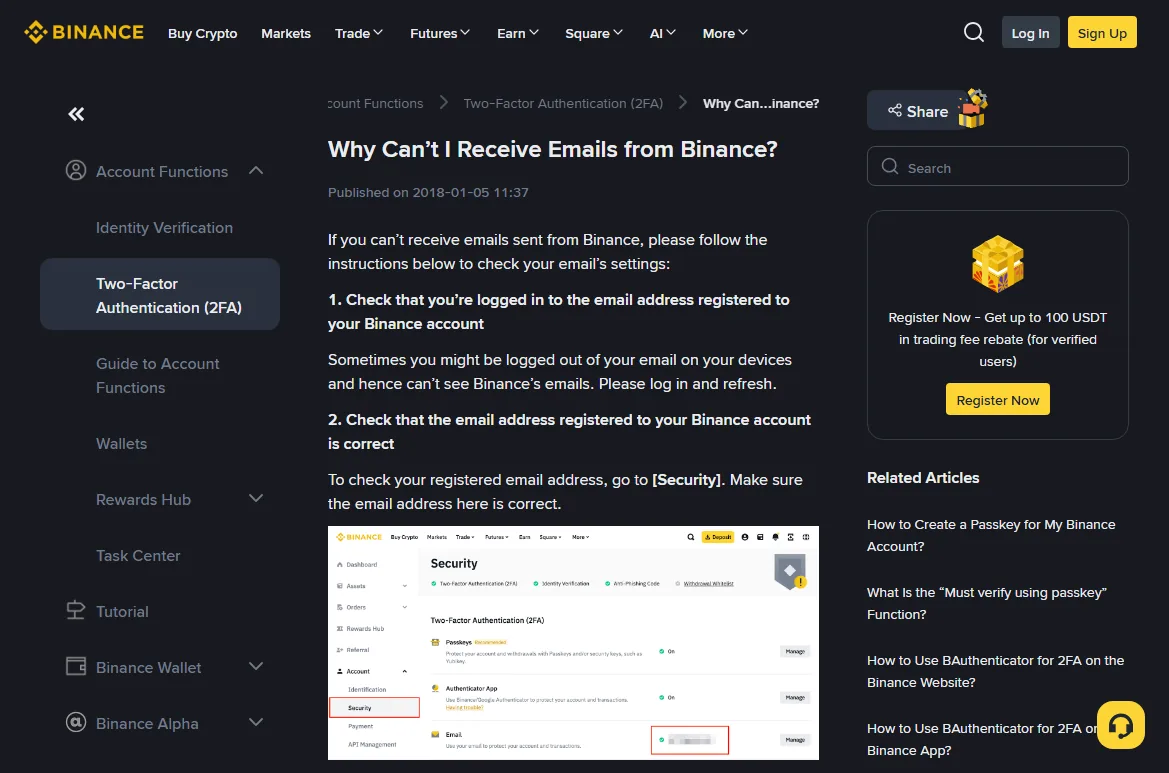
- Look for a missing letter, an extra space, or an ending such as .co where you intended .com.
- Check the account selector inside your mail app. A combined inbox may show several accounts while hiding which one received a particular message.
- If you intentionally entered an alias or forwarding address, confirm which inbox receives mail for that exact address. Do not remove a plus suffix or alter spelling merely to make two labels look identical.
If this step offers Back or Edit, correct the wrong address there and check the destination again before requesting a code. If there is no edit option, note the step you reached and whether the page says an account has been created, then ask official support how to correct its contact details. For provider sign-up, also identify the sign-in method you originally chose.
If the intended address is reported as already registered, use existing email or phone help. Do not ask the owner of a mistyped address to forward a code, and do not try to access their inbox. If the wrong contact has already been attached to your account, describe that to official support.
Search folders, filters and deleted mail
Search for Binance, then inspect the date and purpose of each result. Remove an old date filter or a search restricted to the current folder. A welcome message, marketing email and verification message may all match the same search term.
| Mailbox | Places to inspect |
|---|---|
| Gmail Search example | Spam, Trash, category tabs and archived mail. Include spam and deleted mail in the search scope. |
| Outlook / Hotmail | Junk Email, Archive and Deleted Items; also Other if Focused Inbox is enabled. |
| iCloud or another provider | Junk, deleted mail, custom folders and any forwarding destination. Menu names depend on the service and app. |
Gmail: include Spam and Trash in the search
On a computer, open Gmail and enter in:anywhere Binance in the search box at the top of your mailbox, then run the search. Keep the colon and the space between the two parts. Google’s search instructions confirm that in:anywhere includes Spam and Trash. Alternatively, follow its missing-mail instructions to select Mail, Spam and Trash (Bin in some locales) in the search options. This search format is for Gmail itself.
If the result is a conversation, expand each message and inspect its actual recipient, date and purpose. Find the verification email that matches this registration request before returning to the original verification page. If you only find older messages, record when the last one arrived and continue checking the current request. Read the full message instead of picking a number from a collapsed preview.
Check the rule that moved it
Review rules that archive, delete, redirect or mark messages as read. If you find a matching rule, note what it does before changing it. Adjust the specific unwanted action; there is no need to remove every filter. For a managed work or school mailbox, ask the administrator whether the message was quarantined outside the folders you can see.
Binance's email whitelist guide, labelled last updated 4 December 2024, lists example sender addresses and settings. Check the current official list before adding a sender. It is not exhaustive, and a display name saying Binance is not proof that a message is authentic.
When you find a legitimate message in junk, use the provider’s Not spam or Move to inbox option and note where it was found. Return to the verification page you opened yourself, checking the message’s purpose and validity. If the code has expired, follow that page’s instructions for a new request. Safe-sender settings can reduce future filtering; continue to check unexpected login links carefully.
Check mailbox access and synchronisation
Open your provider’s webmail directly, select the same account and search the same folders. If the website has the email but the app does not, check the app’s selected account, refresh and sync warnings. You can read the webmail version while resolving sync. If neither has it, continue with storage, filtering and the request result below, keeping the original registration page available.
You can check delivery with one ordinary test email from another address you control. Confirm the recipient, give it a title you can easily search for, and check whether the sending account receives a delivery-failure notice. Note when you sent it and what happened, then use the table below. Since the test has a different sender, check Binance-related filtering and the code request separately.
| What you observe | What to check next |
|---|---|
| The test message is missing too | Check its address, the sender's delivery notice, mailbox access, storage and filtering. One missing test does not identify which service failed. |
| The test arrives, but no Binance message appears | This sender can reach the mailbox. Recheck Binance-related filtering, forwarding and the verification request; other senders may take different delivery paths. |
| Webmail has the message; the mail app does not | Check the selected account and its sync status. Use the webmail message while resolving the app issue, subject to the code's current validity. |
Storage warnings and mail that bounced
Read your provider's storage warning before deleting anything. Make room using items you no longer need and check its instructions; do not empty folders that you still need to search. For Outlook.com, Microsoft explains that full cloud storage can prevent receipt and that mail bounced during that time is not recoverable. After restoring capacity, follow the current verification page's rules for a fresh request.
For a custom-domain mailbox, first confirm that the exact address or alias exists. Ask its mail administrator to check bounces, quarantine and delivery records around the request time. Provide the destination and approximate time, keeping verification codes private. Binance recommends common providers such as Gmail and Outlook. If you already have an account, address the current contact problem before considering an official option to change it.
Apple sign-up and Hide My Email
When you choose Hide My Email during Sign in with Apple, the service can receive an address ending in @privaterelay.appleid.com. That address forwards mail; it is not a separate inbox you can log into. Compare the app's saved Apple sign-in entry with the address shown by Binance.
Apple's iPhone guide for iOS 26 describes the per-app Sign in with Apple settings and forwarding controls. In Settings, open your name and Sign in with Apple, then the relevant app. Check the saved choice and where mail is forwarded; inspect that destination's junk and deleted folders as well. Labels can differ by software version.
Do not stop using Sign in with Apple or disable forwarding just to test delivery. If the expected app entry is absent, check whether you used another Apple Account or a different registration method. A normal email sign-up does not become an Apple forwarding case merely because you read mail on an iPhone.
If forwarding appears correct but mail is still missing, keep the relay address private and explain the sign-in method and forwarding problem to official support. Do not register the relay address as a new mailbox or share your Apple password to get help.
What happened when you requested the code?
After requesting, note whether the page shows a sent message, countdown, sending failure or restriction, together with the request time. For a sent message, continue searching the destination mailbox. For a failure or restriction, follow the matching option below. Use the countdown to understand when another action becomes available, and check the mailbox itself to establish whether the email arrived.
- Sent notice or countdown, with no error: note the request time and destination. Finish the mailbox checks and respect the wait shown before considering another request.
- Sending failed: keep the actual error. If the page permits another attempt, use it carefully; do not assume a previous request also failed.
- A limit or try-later notice: stop repeated requests and read too many attempts. A general error alone does not tell you the restriction's cause or duration.
- No response: check for an unfinished challenge or field error. Use sign-up page errors if the button remains unresponsive.
Binance's 2FA code help suggests waiting 10 minutes for delayed codes and trying another device or network for a sending failure. Those are troubleshooting suggestions, not a guaranteed delivery time or a universal registration lockout timer. Follow any different instruction on your current screen.
When changing device, keep track of the registration method, destination and page you are continuing. Do not request codes from several tabs at once. Changing the device used to access Binance does not itself change the mailbox that should receive the message.
When you need more help
If you cannot correct the destination, tell Binance which step you reached and what is wrong with the address. If the mailbox itself is inaccessible, seek recovery help from its provider. When the code is still missing after the delivery checks and the required wait, prepare the information below for support. Keep the current request details; repeated resends can make delayed messages harder to match.
For a mailbox login, storage or quarantine problem, contact the provider or administrator. For a Binance request or account-address problem, use the confirmed Binance Help Center. If you cannot sign in, look for the assistance available to visitors and explain that limitation; account changes may require additional verification.
Give the stage, mail provider, approximate request time and time zone, visible response, and whether webmail, junk search or a test message changed what you observed. For example, saying “webmail receives my test message, but no verification message appears in spam or deleted mail” is more useful than “email is broken.” Do not include passwords or codes.
A different email may be an option if the unfinished registration flow offers it and you control that address long term. First establish whether an account already exists and how the current contact is changed. Do not treat a new registration as the default fix for an inaccessible existing account.
Once you've found the email
Can I use a code found in spam?
The folder does not decide whether a code is valid. Check the message's purpose, destination and expiry instructions, then return to the matching verification page. If the code is rejected, use the invalid-code guide rather than continuing delivery checks.
Which message should I use if several arrive together?
Read the purpose and any request details in each message. Arrival order alone cannot identify the latest request because earlier mail can be delayed. Do not try every code or assume another request clears the backlog. Follow the page's resend instruction, or ask support if the messages remain impossible to match.