Sign-up errors
Binance Sign-Up Not Working: Disabled Button, Blank Page or Error
A button that won't work, a rejected password, a blank page, a security check or an error after submitting: find the fix by symptom.
| What you're seeing | Go to |
|---|---|
| [Register] or [Next] is greyed out, or clicking it does nothing | Button greyed out or does nothing |
| The password is rejected | Password rejected |
| The sign-up page is white or keeps loading | Blank page or endless loading |
| A puzzle, slider or image challenge won't finish, or nothing happens after it | Security check won't complete |
| You clicked submit and a line of error text appeared | An error after submitting |
Choose the row that matches your screen and open that section. Before checking anything, keep the exact message and note the last step you completed: opening sign-up, entering an email, creating a password or pressing submit. After each check, compare the original message with what you now see. This makes it easier to report which action changed the result.
For the complete sequence from the beginning, read the sign-up guide. Use this page when you have already started but cannot continue. If the checks make no difference, the final section has a message outline you can fill in with your error and the checks you actually performed.
Button greyed out or does nothing
Check required fields and visible instructions before treating an unresponsive button as a loading problem:
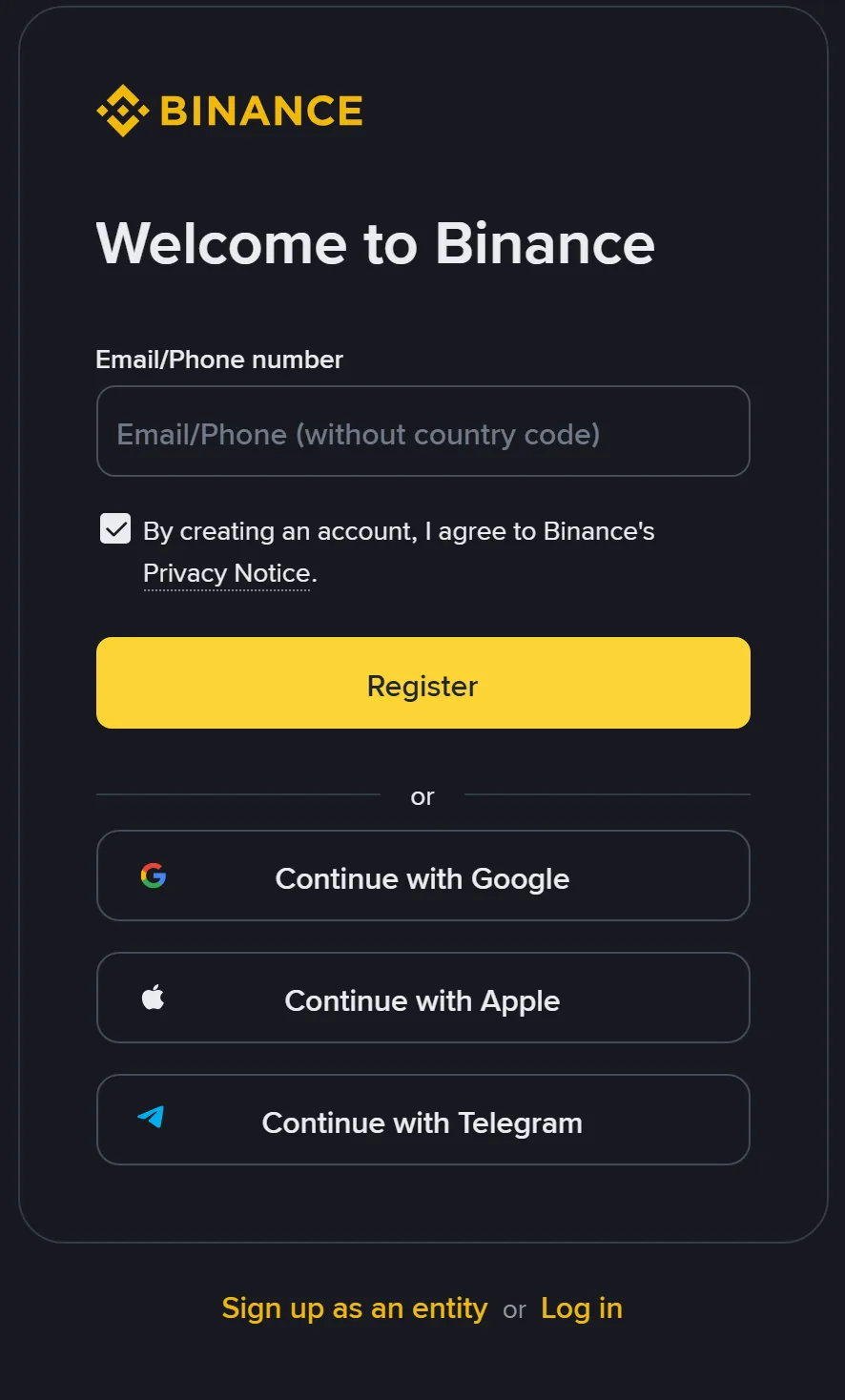
- Field instructions. Follow the hint beside your current email or phone field. The screenshot below says “without country code”; it does not show a separate country-code selector. If your own page has a selector, check it alongside the number. Correct any warning beside the field before trying the button again.
- Required checkboxes. Read the current terms or privacy notice and complete required choices if you agree. The screenshot below shows one captured website screen; later steps and provider-based registration may differ.
- An unfinished earlier step. For example, a code that's only five digits long, or a security check pop-up you closed.
 Open the full image (new tab)
Three checks on this screen
The hint inside the fieldThis capture says “without country code”. Read the instruction in your own input box before checking what you entered.
The choice below the fieldThe Privacy Notice is checked here. Read your current page’s notice and complete its required choices if you agree.
What happens after the clickThe button is yellow in this capture. To check progress, look for the next screen or the exact error shown after pressing it.
Actual Binance website capture, English interface, desktop browser, September 2026. Use it to locate these fields; follow the instructions on your current screen.
Fixed when: the button becomes clickable and takes you to the next screen.
If there is no warning beside a field, look for an unfinished security challenge or an area that still says it is loading. Complete the current request, then try the button once. If you stay on the same screen, follow the page-loading checks and note whether any new message appeared after the click.
Password rejected
Binance's website sign-up guide, checked in September 2026, says the password needs at least 8 characters, including at least one uppercase letter and one number (see How to Register on the Binance Website). If your screen lists more specific requirements, follow the screen.
If the password appears to meet the requirements, first confirm that the error concerns that field, then inspect what was actually entered:
- Copied text. Check for an extra space or surrounding text included in the selection. Do not paste the password into a third-party checking site.
- Keyboard settings. Check Caps Lock and the input language. Inspect the actual characters privately with the show-password option if one is available.
- Phone keyboards. Auto-capitalisation and autocorrect can quietly change the first letter or swap a character. Check the password with the show-password option if the page has one.
- Autofill. Your browser may have filled in an old password from another site instead of the one you just chose.
Fixed when: the password warning disappears and [Next] works.
Don't send your password to anyone to "check what's wrong", including this site and anyone claiming to be support.
Blank page or endless loading
Check the address and the last completed step
Make sure the page belongs to the official Binance site before entering anything. Use the official website and app checks if you are unsure. Keep any error text and note whether the page was blank immediately, one part failed to appear, or loading began after you pressed a button.
If you saw an account-created message or reached identity verification before the spinner appeared, use the checks for continuing an existing registration to review the same account. If you only saw a spinner with no result, note what you submitted and compare the page using the checks below. Tell support which of these happened so they can help establish whether the request completed.
Try another browser window and compare the result
Open the same official address in a private window and check whether the missing content appears. Chrome’s Incognito explanation describes how to open this separate browsing session. Start by comparing the page display. If it asks you to sign in, use your existing account and original sign-in method. A successful comparison gives you a useful observation to report.
- Open the official page in a private window. Check whether the missing area now appears; do not submit another account just to test whether the page can load.
- If it works there, return to the normal window. Review any content-blocking extension you deliberately enabled for the site. Change one relevant setting, then compare the page again. Restore the setting if it makes no difference.
- If both windows fail, try an available connection you normally use, such as Wi-Fi or mobile data. Note whether the same page or error changes. A different result suggests something to investigate; it does not prove the first network was the only cause.
- If necessary, compare the official app or another device. Keep the same account and original sign-in method if an account already exists. Follow any timer or restriction instead of trying to get around it by changing devices.
For a request-processing message, work through the window, network and device comparisons above. These checks draw on Binance’s 2FA help article. Change one thing at a time and keep the message before and after each attempt. Leave your antivirus and firewall enabled. If each comparison stops at the same step, give those results to official support so they can investigate the specific request.
Progress to look for: the missing part appears, a button opens the expected next screen, or a specific error replaces the unexplained loading. If a new message appears, use that message to choose the next check.
If the problem is in the app
Keep the last message before closing the app. When no capture or submission is actively progressing, reopen it and check the account status. Check for an update through the official source you installed it from. Avoid switching versions or reinstalling repeatedly when you have not established whether the first submission completed.
If the app reports a loading error without a waiting instruction, compare another connection you normally use. If the phone’s date or time is visibly wrong, correct it in the device settings and return to the same page. Note whether the error disappears or the next screen opens. If it still fails, give support those results. Keep a record of any unfinished step before considering storage changes, which can remove the current session.
If you move to the website, continue with the same account where one exists. If the website opens but the app still fails, record the app version, device and exact failing step for support. Download only from the verified official source; see the app guide.
A region notice needs a different response
If the page explicitly says the service is unavailable in your location or directs you to a different platform, read that notice. A country restriction is not something to fix by clearing browser data. If the notice seems inconsistent with your circumstances, ask official support about the applicable service before continuing.
Security check won't complete
When signing up or requesting a code, you may see a puzzle, slider or image challenge. Read its instruction before starting, then watch what happens when you complete the action. Use the matching row below for an empty challenge, a failed attempt or a success message that leaves you on the same screen. Follow any waiting instruction in that challenge.
| Problem | Check and result |
|---|---|
| The challenge doesn't appear, or shows as an empty box | Check whether it is still loading, then use the window and network comparisons The challenge displays fully |
| You can drag the piece but it keeps failing | Go slower and release precisely; try a computer instead of a phone or the other way round The challenge closes and the flow continues |
| It says success but the page doesn't move | Check the current prompt and whether an account was created; follow the registration recovery checks before starting over The button takes you to the next screen |
Follow any retry countdown or frequency limit shown. If there is no progress or useful new message, record whether the failure occurs before, during or after the challenge and ask official support. Do not use an automatic challenge-solving service.
An error after submitting
Read the complete error before using the table. Some messages only report that a request did not finish; they do not identify its cause or the account status.
| The message says roughly | Check and result |
|---|---|
| Email or phone number already registered or in use | The contact method is linked to an account Already registered |
| Wrong code | The code you received isn't accepted Invalid or expired code |
| Send code failed. Please click "Get Code" again. | The page reports a sending failure; check delivery separately Click once more; if it fails again, change device or network, as Binance suggests |
| We could not process your request. Please try again later. | The page could not process the request; the cause is not established Try the network and incognito checks once; if you've been clicking repeatedly, see too many attempts |
| Clearly says too many attempts or too frequent | A limit was triggered Too many attempts |
| Service not available in your region, or switch platform | Location restriction Follow the prompt; don't work around it |
| Sign-up finished, but the error is about uploading ID, the face scan or a review result | Identity verification, not sign-up Verification failed |
The sending and request-processing messages correspond to errors in Binance's 2FA code error article, published on 10 December 2024. That article mainly concerns existing accounts. Here, we borrow its network and device comparisons; we do not infer the registration error's cause or tell new users to reset security methods they have never set up.
For a message that only says the request failed or asks you to try later, check the same page for a countdown, account status or additional explanation. Keep the complete wording and where it appeared. If the page checks leave you with the same message, ask official support what that specific notice requires and include the time of your most recent attempt.
When to contact support
Stop repeated submissions when the relevant checks make no difference, or when the page tells you to wait or contact support. You can ask for help without a second device; say which checks you could and could not perform.
If registration is incomplete or you cannot sign in, follow the visitor-support steps: open support from the official homepage or app, choose [Get Support], then [Start Chat as Visitor]. Binance documents this in its dedicated visitor guide. If an automated reply in an open conversation has not helped, How to Use Binance Support explains [Unresolved] and transfer options. Its 24-hour instruction concerns your reply, which keeps the conversation open and preserves your queue position. It is not a promised response time from an agent.
Give them everything in one message. You can fill in this outline:
I'm stuck signing up for a Binance account at [the step, e.g. "clicking Next after creating a password"].
I'm using [website, browser and version / app, version number] on [device model and operating system version].
It happened at [date, time and time zone].
The page shows [exact error text, or "the button does nothing" / "it keeps loading"].
I've tried [incognito window, another network, another device, whatever you actually did], and the result was [no change / a different message].
My screenshot hides my email address and phone number.
Leave out your password and any codes. Support doesn't need them.