Verification codes
Binance "Try Again Later" or Too Many Attempts During Sign-Up
Read the complete notice and identify the affected action. Follow the stated condition, or ask official support when no useful instruction is given.
When you see “too many attempts” or “too many requests”, pause the action you just took. Read the whole notice: does it name requesting a code, submitting a code or pressing Register? Keep any waiting instruction with it. Start with the table below, then use the later sections to check what you can do while waiting and how to continue when permitted.
Use this guide for registration, code requests and continuing an unfinished step. Follow the condition on your own screen first. If there is only an error with no time or next action, see what to record and ask support. Another person’s waiting time describes their situation; it cannot set an unlock time for your account.
Read the message before choosing a fix
| What is visible | What to do first |
|---|---|
| An explicit too-many-requests or too-many-attempts notice | There is a stated restriction on an action. Stop that action and read the waiting or support instruction. |
| A countdown beside Get Code | This may be the ordinary wait before resending. Read its label; it does not by itself establish an account lock. |
| A message saying the request could not be processed | The request failed, but the wording alone does not identify a rate limit. Keep the error and check the current instructions. |
| A code-sending failure | Keep the sending error, check for a separate waiting instruction and inspect any email or SMS that has already arrived. |
| A blank page or unresponsive control | There is not enough information to identify a limit. Use page troubleshooting. |
The table groups common messages by meaning. Keep the exact text from your own page, particularly the restricted action, waiting condition and button name. Include any explanation beside the notice. These details help support identify the step you need help with more clearly than a general report that registration has failed.
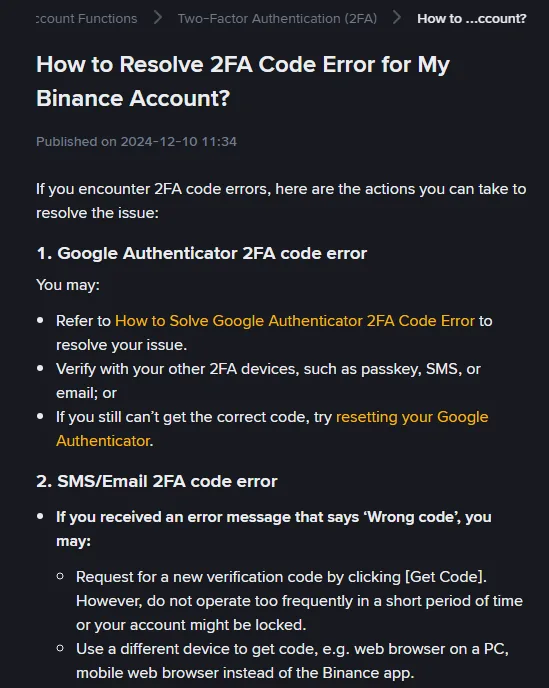
Binance's 2FA code guidance, published 10 December 2024 and checked on 20 September 2026, covers request and code errors and warns against frequent activity. It does not give a universal waiting period for every registration restriction. Its 10-minute suggestion for delayed delivery should not be used as an account-unlock promise.
If the message mentions a review, required identity information or another account, keep that condition separate from a request-frequency problem. Waiting for a resend button will not answer a request to supply or correct information.
Which action triggered the notice?
Recall the last action before the notice and record it alongside the current screen. For example, a warning after pressing Get Code differs from a warning that appeared automatically after you filled the final digit. Choose the matching item below to describe what happened, then continue according to the page’s instruction or support’s reply.
- You requested a code: note whether the warning appeared before or after a sent notice. Earlier messages may still arrive. You can inspect email folders or SMS filters without generating another request.
- You entered or submitted a code: distinguish the returned warning from an earlier wrong-code message. A new limit message does not show that the latest code was checked and found wrong again.
- You pressed Register or Next: record that screen and whether the contact was already verified. Do not assume the entire account was cancelled because this particular step stopped.
- You were signing in through a provider: note whether the warning was on Binance or on Apple, Google or another provider. Keep the two stages separate when seeking help.
- You submitted identity material: follow the relevant review or retry notice and identity verification help. Code-request advice does not establish an identity-review retry limit.
Two messages can concern different actions
For example, the email page may show a resend countdown while a separate submission produces an attempt warning. Record both labels. Do not take the shorter timer as permission to repeat whichever action you want.
Example: resend available, submission still restricted
Request a
new code
Check which request it permits.
Submit a
received code
Follow that notice's waiting or support instruction.
If both the app and a browser are open, compare the account, destination email or phone number, and current step in each. Note which screen shows the restriction and which still shows an earlier step. Continue checking the intended page. When contacting support, describe that difference and say where you completed the most recent action.
A notice that changes after a permitted attempt also needs to be read afresh. A format error, missing challenge and review request are different from the previous warning. Follow the new problem rather than treating every obstacle as the same timer.
Waiting and making a permitted attempt
What you can check while paused
Leave the relevant page available if convenient and keep its wording and time. You do not have to stay watching the countdown. Before leaving, note how you reached this step and which account or contact it concerns so you can return to the intended flow.
- Inspect existing messages and filters, without requesting more codes.
- Compare the destination shown with the contact you intended to use.
- Write down the device or browser, the first warning and the last action attempted.
- Read any separate request for information or official support instruction already provided.
Do not keep tapping to see whether the restriction is still there. Do not submit variations of a code or rotate through new contacts and devices. These actions make the sequence harder to understand and may create additional requests or accounts to untangle.
Keep the number of actions clear. “I requested another code once” is different from a form automatically submitting when the final digit was filled and then receiving an extra button press. Tell support what you observed, including an unexpected automatic submission, without claiming that you can see the platform's internal attempt counter.
Use the page's stated condition
If a restriction notice gives a waiting period or time, read which action it applies to and any conditions beside it. When the stated condition is met, make only the relevant attempt that the page permits, then wait for its response. Do not immediately request, enter and submit several different things to test whether everything works.
A normal resend countdown only tells you when that control offers another request. The code you already received can have its own expiry. If another notice still restricts submissions, a resend button becoming available does not cancel that notice.
If the notice gives no waiting time, pause that action and save its wording and your last attempt time. When you return to the same page, look for a new waiting or support instruction. If it still shows only the warning, ask official support which operation is restricted and how to proceed. Include how long you have already waited instead of guessing another deadline.
If the displayed time is unclear, keep the numbers, date and explanation exactly as shown, and include your time zone when asking for help. If a reload changes the countdown, record both values and when you saw them. Ask which instruction to follow. Continue according to the explicit page notice or the official reply about this attempt.
Read the result of that attempt
When the page permits an attempt, perform that action and wait for its response before continuing. For a code request, look for confirmation that it was sent. For a submitted code, check whether the next step opens. If a limit notice returns, pause that action and keep the new text. Check the result of each step before dealing with the next request.
If the same warning returns, stop that action and add the new time to your earlier record. Tell support when the page asked you to wait until, when you tried again and which message reappeared. Then ask what to do next. This describes the waiting and retry sequence without repeatedly clicking just to demonstrate that the problem remains.
If a different error appears, use the matching guide. For a received code rejected as invalid, see code error checks. If a code never arrives, return to delivery checks. This avoids mixing a solved request problem with a new input or receipt problem.
Changing device or opening a private window
The Binance guidance linked above suggests network, device or browser checks for some general request errors. Use those suggestions for the stated problem and respect any explicit restriction. A different browser window is not a promise of permission to repeat a blocked action.
Google explains that Chrome Incognito starts a separate browsing session and does not automatically sign you in. Websites can still observe activity. Treat it as a way to compare browser behaviour when appropriate, not as a way to clear an account's restrictions.
Before using another session, record the official page you intend to return to, the registration method and the contact or account concerned. Open the official entry yourself. Do not copy an entire private verification link into a public troubleshooting post or send it to an unfamiliar person.
On the new screen, read the heading and buttons: are you being asked to sign in, continue a code step or start registration again?
If you already have an account, use its original sign-in method and check the interrupted step. If account creation is uncertain, review earlier success messages or notices and tell support the last step you completed.
Do not clear every site's cookies or delete app storage merely because an article mentions browser troubleshooting. Such changes may remove local progress or sign-in state. If a specific browser fault warrants a change, understand what will be removed and keep the information needed to resume first.
After a permitted comparison, continue from the intended page and stop parallel retries elsewhere. If one device works and another does not, describe that difference to support. It is more useful than guessing that the network, phone or account was permanently blocked.
When waiting leaves you unable to continue
Contact official support when the stated waiting condition has passed but the relevant permitted action is still refused, the notice gives no usable instruction, or the next message asks for something you cannot understand or complete. You do not need to wait until the following day simply to qualify for help.
Use the confirmed Help Center. Binance's support instructions, updated 11 June 2026, describe Get Support, follow-up questions and customer-service options. If automated suggestions do not fit, explain why or follow the current unresolved/not-relevant options. A particular button does not guarantee an immediate human reply.
If you cannot sign in, state that limitation and use the help offered for that situation. Describe whether you are before account confirmation, continuing a provider-created account or already signed in. Do not tell support “no account exists yet” unless you actually know that.
Bring a short sequence of observations
- The action and the complete warning, including any visible time or countdown label.
- The first occurrence, last attempt and your time zone; approximate times are fine if labelled as approximate.
- The website or app, device and relevant version, plus any switch between them.
- Whether the destination matched, earlier codes arrived, or the message changed after waiting.
- Any existing support reference and the instruction you were following.
Ask which action is restricted and what condition allows it to resume. If support requests evidence, provide only what the verified official process requires and remove unrelated private details. Passwords, verification codes and a full private continuation link should not be posted publicly or handed to someone claiming to unlock the account.
Keep the reference and follow-up instruction so you do not need to recreate the error for another conversation. After a confirmed next step succeeds, return to the relevant part of the registration guide. Judge completion from the current account or registration confirmation, not from the disappearance of one warning.