Getting started
How to Sign Up for Binance on the Website or App
Follow the email or phone steps, or check the separate Google, Apple and Telegram routes. Includes interrupted sign-up, switching devices and getting help.
To register with an email address or phone number, verify that contact method and create a password, then complete identity verification after the account is created. Returning users should choose Log In with their original details. If you have changed phones or forgotten those details, the recovery and device-switching instructions below explain where to continue.
New to Binance? Start with the five steps below. For other situations:
Google, Apple or Telegram sign-up
Resume an interrupted registration
The five steps
Short answer: These steps cover email or phone registration and the verification that follows. Account creation and identity approval are separate results. Delayed codes, additional checks and the review can all affect how long it takes.
- Open the sign-up page on the Binance website or in the official app.
- Enter your email address or phone number and agree to the Terms of Service and Privacy Policy.
- Enter the 6-digit code sent to your email or phone. The official guide gives 30 minutes for this route; follow any specific expiry stated in your current message or screen.
- Create a password with at least 8 characters, including at least one uppercase letter and one number.
- When you see that your account has been created, continue to identity verification. Binance states that you must complete it before trading.
These steps follow two Binance Support articles, How to Register on the Binance Website and How to Register on the Binance App, both last updated on 24 November 2025. We rechecked the public instructions on 15 September 2026. The sign-up screenshots were captured on 14 September 2026; we did not submit a complete registration or identity check using a real identity. Button labels vary by region, language and app version, so if your screen says something slightly different, go by your screen.
Before you start
Check that Binance.com is the right platform for you
This guide covers registration on Binance.com. Check the service available for your actual country of residence before entering personal details. Binance.US is a separate platform with its own registration rules, identity checks and features; users directed there need that platform's instructions. The steps and screenshots below describe Binance.com only.
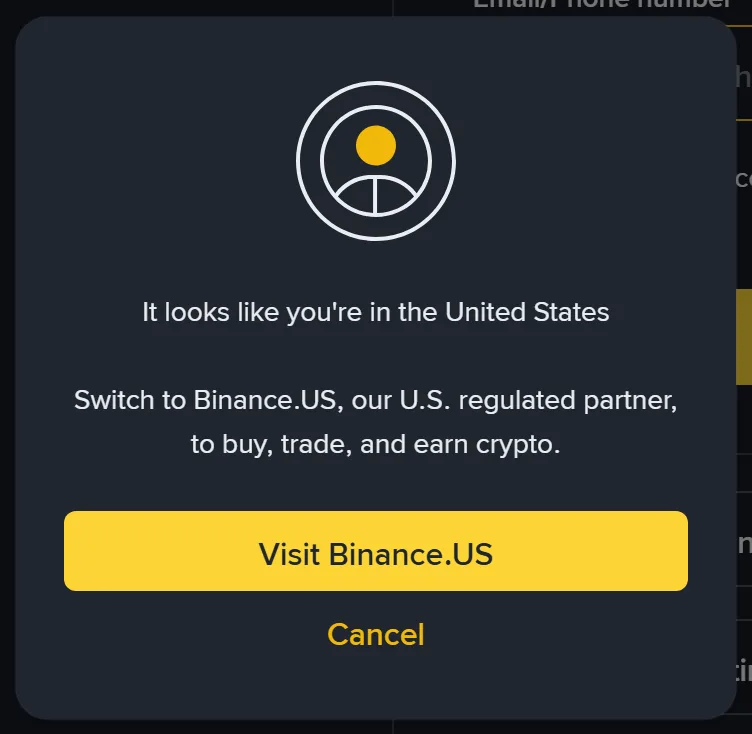
During our 14 September 2026 visit from a US network, the sign-up page displayed a location prompt and offered a button for Binance.US. A network-location prompt alone cannot establish your residence or eligibility. If one appears, read it, check the service conditions for where you actually live and ask official support if the message conflicts with your circumstances. Give your real residence information and follow any applicable restriction.
Use an email address or phone number you'll keep
Codes, sign-in alerts and verification results all go to this contact method. Pick one you personally control and expect to keep for years. Disposable inboxes and someone else's phone number are poor choices.
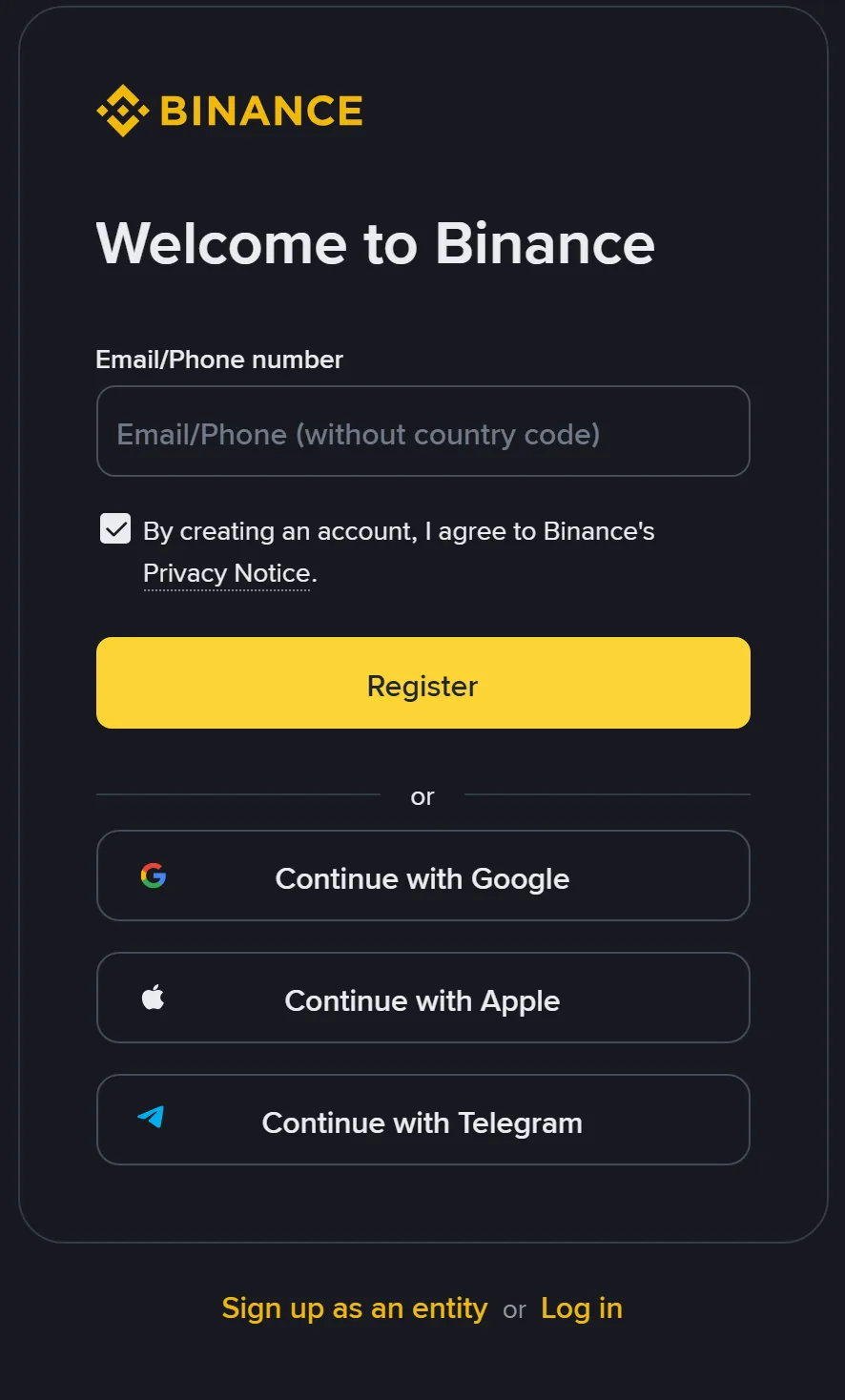
The captured input says “Email/Phone (without country code)”; that screen does not show a separate country-code selector. Read the hint on your current page before entering the number. If a separate selector appears, check the selected country or region alongside the number. Follow any format warning beside the field.
Binance's SMS help article notes that SMS verification is unavailable in some countries or regions. If a text is missing, check the number displayed on the verification page, whether the request was sent and any restriction message. Those details help you decide whether to investigate delivery or ask about availability. If no account has been created and email registration is offered, you can consider that option under the same regional eligibility requirements.
If you're torn between email and phone, the pre-sign-up checklist compares them.
Make sure your device can handle verification
You can sign up on a computer or a phone. Identity verification needs a working camera for photos of your ID and a face check. To install the app, open the official Binance download page and choose an option offered there for your device. If you're not sure which app is genuine, read how to find the official Binance app before installing anything.
Google, Apple and Telegram: which steps change?
Use the sign-up options displayed on your Binance page. Before approving anything, check which account the sign-in window has selected. This matters on a computer where you use both a work and a personal Google account. If the wrong one appears, return to the account chooser before continuing.
Google and Apple return you to Binance after authorisation
Choose Google or Apple on Binance, check the provider account selected in the window and authorise the request you started. Return to Binance to complete the remaining prompts and look for the account-created result. Keep a note of the provider and account you used: you will need that same combination when logging in later. Follow this route's prompts, which can differ from the email-and-password sequence below.
Used Apple's Hide My Email? Apple's Hide My Email instructions explain how the forwarding address works. On an iPhone or iPad, open Settings, tap your name, then Sign in with Apple and select the app. An address ending in @privaterelay.appleid.com is a forwarding address, so it can differ from the inbox where you receive messages. Check that destination inbox. Keep a note of the forwarding address as well as the destination, so you can recognise which Apple sign-in belongs to the account.
Telegram asks whether to create or link an account
For Telegram, first choose the task that matches your situation. A new user continues with a new Binance account, supplies an email address or phone number and verifies it. Someone who already has a Binance account uses the linking option. After authorisation, return to Binance and complete the remaining contact or identity checks shown there.
Approve only the request you have just started from the official Binance page. Keep verification codes private and decline requests sent by strangers. If authorisation closes unexpectedly or returns to a blank page, go back to the original Binance window and check its result. Use the interrupted-registration section if the outcome remains unclear.
Signing up on the website
Step 1: Enter your email or phone number
Enter your email address or phone number on the Binance homepage and click the sign-up button, or open the sign-up page directly.
Open sign-up with our referral link: Go to the Binance sign-up page (referral code BN6861, referral link)
We may earn a commission if you sign up through this referral link, at no extra cost to you.
The steps afterwards are exactly the same as signing up directly, and at step 5 you can check that the code is linked. If you'd rather not use a referral link, typing the official address yourself works just as well.
What to choose on the sign-up screen
Email or phone numberEnter the contact you want to use. The field asks for a phone number without its country code. Read the Privacy Notice, then use the yellow [Register] button.
Google, Apple or TelegramThese are alternative sign-up options. Read the third-party sign-up instructions above before choosing one, and check which account you authorise.
Looking for the referral field?It is absent from this first screen. As you continue, use the referral code instructions below to find the relevant page and check the result.
Real website screenshot · English · Desktop browser
accounts.binance.com · Captured 14 September 2026
 View full-size image (new tab)
Done when: the page moves on to the terms or the verification code screen.
If the button does nothing, looks greyed out, or the page stays blank, see sign-up page errors. If you're told the email or phone number is already in use, it's linked to an existing account. Don't try variations of it; read what to do when your email or phone is already registered.
Step 2: Agree to the terms
Read the Terms of Service and Privacy Policy, tick the box and click [Next].
Open the terms and find the sections covering personal-account eligibility and service availability. Compare them with your age, residence and the type of account you intend to open. If a condition is unclear, resolve it with official support before continuing.
Step 3: Enter the 6-digit code
Binance sends a 6-digit code to your email or phone. Its email/phone sign-up guide gives 30 minutes to enter it and click [Submit]. That is not a universal expiry for login, security or campaign codes. Follow a different deadline if your current message or screen specifies one.
- Nothing in your inbox: email verification code not received.
- No text message: SMS verification code not received.
- The code arrived but is rejected as wrong or expired: verification code invalid or expired.
- A message tells you to try again later: too many attempts.
After requesting a code, check the intended inbox and its spam or message filters while you wait. Keep to one registration page so you can match a message to the request that sent it. Frequent requests make that harder; Binance's code troubleshooting article also warns that operating too frequently in a short period may get the account locked. Use the page's resend option only when another request is needed and permitted.
Before entering the code, compare the masked destination with the email address or phone number you supplied. Read the code's expiry information separately from the resend countdown: the countdown controls when you can request another message. If several messages have arrived and you cannot identify the matching request, pause entry and follow the invalid-code guide. Once the page permits another request, make one from that page and follow its instructions.
Done when: you reach the password screen.
Step 4: Create a password
Use at least 8 characters with at least one uppercase letter and one number, following the requirements shown on your current screen. If it appears to meet them but is still rejected, see how to inspect the password field and input.
Don't reuse a password from another site, and never share it. Anyone claiming to be Binance support who asks for your password or a verification code should be ignored; Binance's own support guide says not to give either to support staff.
Done when: you see a message congratulating you on creating your Binance account.
Step 5: Check the referral code and continue
The account-created screen shows the referral code status (see where the referral code appears). Click [Next] to finish.
On the website, identity verification is under Account > Identification, and the homepage may also show a Verify button.
Signing up in the app
This list is for email or phone registration. Make sure you are in the personal-account flow. The provider-account routes are covered separately above.
- Open the Binance app, tap [Sign up], then tap [Create a Binance Account].
- Confirm that you are creating a personal account. The account type cannot simply be changed after registration. If the page asks for company or entity information, check the entry point.
- Choose email or phone registration.
- Enter your email or phone number, agree to the Terms of Service and Privacy Policy, and tap [Next].
- Enter the 6-digit code within the expiry shown on the current page or message, then tap [Submit]; the official guide gives 30 minutes for this route.
- Create a password that meets the requirements and tap [Next].
- Once the account is created, tap [Next]. The app redirects you to identity verification.
Website or app? Choose the official route that works on your device. Identity verification needs a working camera; the sides or pages requested depend on the document type. If the website offers a QR code, follow it to continue on a phone. QR continuation and manual upload are not available in every flow or country. Keep the same account when switching devices.
Codes and passwords: check the field first
Read the field label before changing what you entered. A registration form can ask for a contact-verification code, a password you are creating or a referral code. Signing into an existing account may also bring up an authenticator or passkey request. The sections below explain where each value comes from and what to check if the page rejects it.
Email or SMS verification code
Use the message sent for the contact-verification request you started on this page. Compare the destination with your own email address or number and check what the message says it is for. When several Binance messages are in your inbox, match the purpose as well as the recipient: a login message belongs to its login request, while registration has its own check.
If the destination is wrong, use the page's return option to correct the contact details, then request a code for the corrected destination. If it is right but the code is rejected, keep the error text and follow the invalid-code checks. Leave the password step until contact verification has accepted the code and the page asks you to continue.
Your new Binance password
For email or phone registration, create a password specifically for your Binance account and keep it securely. Look for a create-password label and the requirements beside the field. A page labelled Log In is asking for an existing account's credentials instead.
If you started with Google or Apple, continue with the provider steps above and the account selected there. For a login screen that refers to an old account you recognise, use the existing-account login checks. If the account is unfamiliar, check the contact details and original sign-up method before trying to recover it.
Referral code
A referral code identifies the invitation used for registration. This site's code is BN6861. Enter it in the referral field when that option is offered, then check the invitation status at the stage described below. For an email or SMS verification field, use its verification message instead. If the referral entry is rejected, retain the error wording so you can follow the relevant invitation checks.
An authenticator code or passkey prompt
For an authenticator request, use the verification method associated with your own account. A passkey prompt may let you approve using an available device. If you expected to create a new account and instead see a request for a security method, first check the account and sign-in route shown on the page. When the method belongs to your account but you can no longer use it, follow the official recovery option provided there.
The password seems to meet the rules, but is rejected
Start with the requirements visible beside the field. Binance's linked email/phone guide specifies at least eight characters, an uppercase letter and a number. Check each requirement separately. This is a minimum format rule; a short password reused elsewhere is still a poor choice. Do not use a password printed as an example in a tutorial.
When typing, check the keyboard language and Caps Lock state. If the field offers a reveal control, inspect it privately to confirm what you entered, then hide it again. When pasting, make sure you selected only the intended value, without copying a surrounding label or line break. Do not send the password to support or a website editor to ask which character is wrong.
Read the error before deciding what to change. A highlighted password requirement calls for correcting that requirement. An email-already-used message calls for checking the account associated with the address. A temporary restriction calls for waiting as instructed, while a submission indicator calls for waiting for a result. Keep the message visible while checking the relevant item; changing several fields at once can make it harder to identify which correction helped.
If a password manager filled the field, open the selected entry privately and compare its website and username with this registration. On a browser with several saved logins, an older account may have supplied the value. Select the intended record before continuing; preserve an existing account's record while you check which account this page belongs to. Chrome users can use Google's password-management instructions to review saved entries.
On a phone, the keyboard can hide the next instruction
Dismiss the on-screen keyboard without leaving the page, then look below the field and above the button for an error or another required item. Check the page's own button rather than assuming the keyboard's Next or Done key submitted the form. If the contact field has been filled automatically, read it again before requesting a code, especially on a device used with several email accounts.
If a button is disabled, check the required fields and agreement controls that are actually visible. If it responds but returns an error, keep that error text. If the page goes blank or keeps loading, use the registration-page troubleshooting guide. A screenshot for support should show the field label and error while hiding the value, so the problem can be understood without exposing your password or code.
After saving a password, check the Binance result
When the save prompt appears, review the username and the password it is about to store, then return to Binance to check the submission result. If the connection failed, retain the intended details securely and follow the interrupted-registration section below. Once you have confirmed the account, match its sign-in details with the saved record. This helps you choose the correct entry later, especially if the browser offered to update an older login during registration.
Where the referral code appears
People often look for a referral field on the first screen and assume they've missed it. According to Binance's website sign-up guide, the code is shown on the account-created screen:
- If you opened sign-up through a referral link, the code should be filled in automatically, with a green tick and [Linked] next to it.
- If the pre-filled code is invalid, you can edit it or enter another one.
- Once a referral code is linked to your account, it cannot be changed.
Our captured first screen had no separate referral field even when opened with a referral parameter in the address. Continue to the account-created stage described in the official guide and look for both BN6861 and [Linked]. If an editable field is empty, enter BN6861, follow the page's confirmation step and check the status before leaving. If it shows a different linked code, an error or no field at all, read the referral-code guide below for that situation.
What new users get through a referral link
Our referral link leads to Binance's welcome-bonus offer. According to Binance's announcement Binance Upgrades Affiliate-Boosted Welcome Bonus: Offer Invitees Up to $19,800 worth of Rewards! (7 May 2026) and the campaign page:
- New users who sign up through a participating affiliate's referral link are assigned new-user tasks at registration, with rewards worth up to $100. The exact tasks vary by region and user.
- If you complete identity verification within 30 days of registering, second-stage tiered tasks with rewards worth up to $19,700 are assigned within 2 hours of verification. The two stages together come to up to $19,800 worth of rewards.
- Tiered tasks require a set net deposit and spot or futures trading volume, rising with each tier. Rewards are vouchers, claimed in the Reward Hub.
- Each affiliate can give second-stage tasks to only the first 1,000 new users in each 30-day cycle, and Binance can change the task structure, reward types and amounts at any time.
The advertised maximum is not an amount paid simply for registering; each task tier has its own conditions. What you're actually assigned is whatever your Reward Hub shows after sign-up. Trading crypto can lose you money; if you weren't planning to trade, there's no need to deposit or trade just for a reward.
The commission a referrer earns and the rewards you may get as a new user are separate things. If you forgot the code, it was rejected, or you want to add one after signing up, see where to enter a Binance referral code.
Is your registration complete?
To check how far you have got, read the account result and then open Identification for the verification status. The table shows what each stage means and where to continue. If you have only returned to a home screen, check these results before deciding which step is finished.
| Status | How you can tell | What's left |
|---|---|---|
| Account created | You saw the account-created result and can enter the same account using the original contact details or provider sign-in method | Identity verification |
| Email or phone verified | In email/phone sign-up, the code was accepted and you reached the password screen; provider routes can differ | Nothing; this happens during sign-up |
| Identity verification submitted | After confirming your personal details, the flow moved to waiting for review | The review result; use the current options or official help if the submitted details need correcting |
| Identity verification approved | You received the approval notification and the Identification page shows you as verified | Nothing; sign-up and verification are both done |
Why verification comes after sign-up
Binance describes identity verification as part of its Know Your Customer (KYC) checks, used to help prevent fraud and money laundering. Its guidance requires new users to complete the Verified level to use deposits and trading. After creating your account, open Identification to see the information requested for your application and the status of any checks already submitted.
What identity verification involves
According to Binance's guide How to Complete Identity Verification for a Personal Account (updated 5 June 2026), you select your country of residence, the document's issuing country or region and the document type; upload the document (both sides for an ID card); turn on your camera for a liveness check without a hat, glasses or filters, in good light; confirm your personal details; and wait for review. Binance says submitted documents are usually reviewed within 48 hours, though some cases take longer.
Compare every field with your ID before confirming, especially the spelling of your name and date of birth. Correct visible mistakes while the form offers editing. During submission, keep the page or app open until a result appears. If you later need to change information that has already been verified, follow the separate process in correcting and updating identity details.
The full walkthrough, including which documents to choose and how to read each status, is in how to complete Binance identity verification. If you've submitted and nothing has happened, see identity verification still under review.
Three things to do once the account exists
Once you can access your account, keep a record of how to sign in and review its security settings. The three checks below help you return to the same account and recognise suspicious messages. Follow any required setup shown by Binance as you work through them.
- Write down how you sign in. Note which email address or phone number you used, or which Google, Apple or Telegram account, and keep the password in a password manager you trust. Forgetting years from now which email you used means going through Binance's "Forgot Account" appeal, which is far more work than a note today.
- Turn on at least one form of two-factor authentication (2FA). It's the last recommendation in Binance's sign-up guide. Common options are an authenticator app or a passkey; the choices available are shown in your account's security settings. It reduces the risk from a stolen password; you still need to protect the verification device and check what you approve. This site doesn't cover security settings in detail, so follow the on-screen steps.
- Learn to spot fake "Binance" messages. After signing up you may get emails, texts or even calls claiming to be Binance. If you're unsure, use Binance's official verification tool to check whether a website, email address or phone number is genuine; see how to find the official Binance site and app. One rule covers most cases: anyone asking for your password or a verification code isn't real support.
Use the options available in your account. If Binance asks you to finish a verification step before opening a setting, follow that requirement, then return to the remaining checks.
Closed the page or switching to a phone?
Find the last result you remember seeing: a code request, an account-created message or an identity-verification status. Start with the matching situation below. If the page closed while a request was being submitted, the outcome still needs checking. Return through the official entry point with the same contact details or provider account so you can find where that attempt left off.
You were still entering an email, phone number or code
Return to the original sign-up page and check the contact details. If the page has expired, follow its restart prompt. If it still asks for a code, work in that one page. If it says already registered, check whether this is your existing account before switching to another address.
The connection dropped while you submitted a password
Open the official login page and try the details you just used. If you can log in, check the account information and Identification status. If login fails, read whether the message concerns the password, contact details or a temporary restriction, and follow that specific check. Keep a note of the last registration result and the login error if you need support to investigate the interruption.
You saw the account-created message before closing the page
Choose Log In and use the email, phone or third-party sign-in method used during registration. Continue from Identification in that account, without registering again.
Your documents were submitted and the page said under review
After signing in, open Identification and read the status together with any request for more information. A pending application calls for checking its stated review time; a request for documents calls for supplying the specified material through that application. If verification was rejected, read the reason before resubmitting.
Already registered, but you do not recognise the account
Check the spelling of the email address or the phone number and country code first. If you recognise the account as yours, continue through login or recovery. For a newly assigned number, an address you have never registered or unclear ownership, ask official support to investigate. Keep the exact already-registered message and explain whether you had seen an account-created result before the interruption. The already-registered guide covers these situations separately.
For your own account with a forgotten password, choose Forgot password? on the login page and complete the required security checks. Read any temporary restrictions before confirming the reset, then return to that account with its updated credentials. If the missing detail is the registered email address or phone number itself, use Binance's Forgot Account appeal.
Continue on your phone after signing up on a computer
Once the account exists, choose Log In in the official app and use the original sign-in method. For Google or Apple registration, select that provider and check the account chosen in its window. For email or phone registration, enter the original contact details. This matters on a phone that uses a different default Google or Apple account from the computer where you started.
Compare the email, phone number or user ID shown in the account centre on both devices, then check the verification status. If the computer shows a submitted application while the phone starts with an empty profile, check for an account mismatch before uploading documents again. A useful record for support is which device shows which status, when you checked it and whether the account identifiers match. Keep personal details hidden in shared screenshots.
If the computer's identity-verification page offers a QR code for continuing on your phone, follow that option from your own active verification page. If the code expires, return there for a new one. Do not use a supposed verification QR code sent by a stranger. If that option is absent, use the verification route actually offered in your account; document-upload options can vary by country.
Stuck? Find the right guide
Note which screen you're on and exactly what it says, then use this table. Once the problem is fixed, pick up again at the step shown in the middle column.
| What you see | Where you are | Read |
|---|---|---|
| Can't find the real site or can't tell if an app is genuine | Before step 1 | Official site and app |
| [Register] or [Next] won't work, or the page is blank | Steps 1–2 | Sign-up errors |
| Email or phone number already in use | Step 1 | Already registered |
| No email code | Step 3 | Email code |
| No SMS code | Step 3 | SMS code |
| Code rejected as wrong or expired | Step 3 | Invalid code |
| Told to try again later | Around step 3 | Too many attempts |
| Referral code missing, invalid or forgotten | Step 5 | Referral code |
| Verification failed or was rejected | After sign-up | Verification failed |
If you first cannot receive an email and then see “try again later” after resending, handle the restriction before making another request. You can still check the inbox while sending is paused.
Read the waiting instruction on the page and follow the too-many-attempts guide. During that wait, check spam, mailbox storage and forwarding using the email guide. Delayed messages may arrive out of order, so identify the request each message belongs to before entering anything. If that is unclear, wait until the restriction has cleared and the page permits a new request. Send one from the registration page you are using, follow its instructions and return to step 3. Tell support about both the missing message and the later restriction if the problem continues.
Contact support before you can log in
If registration is incomplete or you cannot sign in, Binance offers visitor support. Its official article How to Contact Binance Support as a Visitor? (published 30 March 2026; rechecked 20 September 2026) gives web and app instructions. Follow the steps below. If you are already signed in, open support from your current page.
- Open the support icon on the official Binance homepage or in the official app, then choose Get Support.
- Provide your contact email or phone in the visitor form and select Start Chat as Visitor.
- Describe the problem. To request a person, enter “Customer support” and choose Transfer to Customer Service when that option appears. Labels and layout may differ on your screen.
Give the failing step instead of only saying “I can't register”. For example: “Website email sign-up; the code is rejected as expired after Submit; this happened at this date, time and time zone; I checked the email spelling and have no other registration page open.” Keep the original error wording and hide your email, phone and verification code in screenshots.
Do not send passwords or verification codes to anyone in chat. If the official account-recovery process requests identity documents or a statement video, submit them only through the official submission page you have verified. Do not send them to this site or a person offering registration help in private messages. Entering a code in the correct official verification field is different from telling it to another person.
Questions
Is creating an account the same as completing identity verification?
No. The account-created result confirms that part of sign-up; receiving a code alone does not. Identity verification requires personal information, document and identity checks, then a result. Google or Apple registration may not include a separate Binance password screen, so check your own registration result and verification status.
Do I need separate accounts for the app and website?
No. After creating the account, choose Log In on the other device and use the original contact details or the same provider sign-in method. Check the account information and verification status. Seeing a sign-up button on a different device is not a reason to create another account.
What should I check if the referral field is missing?
Check which screen you are on. Our captured first screen has no referral field; the official guide checks the code after account creation. An empty field at that stage does not prove you arrived without a referral link. If it is editable, enter the code and check for Linked. If there is no field or an error appears, use the referral-code guide.
How can I tell whether the current registration step is complete?
Look at the result shown. Email or phone sign-up normally moves from an accepted code to a password screen and then an account-created result. Other methods can follow a different order. If a connection drops during submission or no result appears, the outcome is unconfirmed. Use the interrupted-sign-up section to check before assuming success or failure.