Identity verification
Binance Identity Verification Failed: What to Check First
Not approved? Confirm the actual status first, then use the reason in the notice to fix your details, document or face check.
When a verification rejection arrives, check which account and application it concerns, then read what needs correcting. Personal details, documents and capture problems can overlap. The word failed alone does not tell you which photographs, if any, need replacing.
Use the checks below to understand the status and notice before choosing a specific remedy. For the complete sequence, see the identity verification guide.
Has it actually failed?
Open the verification details for the account you meant to use: Account > Identification on the website, or the verification entry in the app's Account Center. Read the status together with the latest request. A button inviting you to continue is not enough to determine whether an earlier application was submitted.
| What you see | What to check next |
|---|---|
| Upload, face check or confirmation still available | Look for the step's instructions and any submission record. It may be unfinished work, a replacement or an additional request. For a failure inside the step, use the upload checks or face-check guide. |
| Submitted or under review | Check whether the page gives an estimated time or requests anything else. If it only asks you to wait, follow the pending-review guide rather than sending another application. |
| Additional material requested | Read what is requested and which application or verification level it concerns. The request alone does not tell you the outcome of all earlier checks. |
| A rejection notice | Read its reason, date and affected step. Compare it with the current account page before changing material. |
Check which application the notice concerns
If you have submitted more than once, compare the notice time with the time of the relevant submission. An email arriving now may refer to an earlier attempt. Likewise, an old browser tab may show information from before your latest action. Use the account's current verification details when you are no longer in the middle of an upload or capture.
If the account page says under review but a message says rejected, check for a matching application reference, date or document description, if provided. Keep both messages when you cannot establish which is newer or what they refer to. Do not submit a third application simply to make the two displays agree; ask support to identify the current request.
Also check that you are on the intended account. A different email or provider account on another device can show an unrelated status. Do this privately; you do not need to copy the full account identifier into a public post. If the account is unfamiliar, stop before supplying documents and use the identity already used checks if that is the message shown.
Binance's personal verification article gives a usual review time of 48 hours and allows for longer cases. An elapsed estimate is a reason to follow up on a pending application, not evidence of rejection. Any current timing or action shown for your application needs to be read alongside that general estimate.
Match the reason to a fix
Read the reason in full, then use the relevant check below. We've grouped these by type of problem; this isn't Binance's own list of reasons, and it isn't every possible reason.
| Reason, roughly | Check and detailed help |
|---|---|
| Name, date of birth or other details don't match the ID | Compare the field and document; if direct editing is unavailable, check the applicable correction tool or ask support Residence and name details |
| Residence or issuing country entered incorrectly | Compare each field with your actual residence or the country that issued the ID; they can be different Residence and name details |
| Document type not supported, or expired | Check the selected file against the original; if it is expired or unsuitable, find an accepted valid alternative ID rejected |
| Blurry, cropped, glare, unreadable | Reshoot with all edges visible, no glare, readable text ID rejected |
| Face verification not passed, face not recognised | Compare the camera, movement instructions and result notice to find the affected step Face verification failed |
| Proof of address doesn't meet requirements | Check type, date, name and address Proof of address rejected |
| Identity or ID already used on another account | Don't open another account with a new email; let Binance check ownership ID already used |
Binance's personal verification instructions require personal details to match the document and describe the document and live face checks. Options can differ by document, region and flow. Start with what the notice names; the table cannot diagnose the application automatically.
No reason given
A notification preview can omit the useful part of a message. Open the full notice through a confirmed official entry and look for the named document, field or action. Keep the original wording even if you use a translation to understand it; the translated sentence may lose the difference between a rejected document and a request to provide one.
- Check your messages. Look in the inbox associated with the account, including spam and other folders. Use the time and subject to find the relevant result, rather than assuming the most recently delivered email concerns the latest attempt.
- Read the account page. Look beside or below the status for details, a request or a case reference. A broad label such as unsuccessful may have more explanation inside the entry.
- Compare any app notice. Check its date and the account you are using. If it adds no explanation, keep that fact for support instead of repeatedly reopening it.
Write down the particular uncertainty: no reason displayed; reason names a field but you cannot see which value is wrong; or the notice refers to a document you did not submit. These need different questions. For example, asking which document the notice concerns is more useful than reporting only that verification is broken.
If you find a clear problem during these checks, such as selecting a passport while submitting an identity card, keep that observation. You can correct it through an available, applicable edit route. If the reason remains unknown, ask for clarification before another submission. Changing several unrelated fields at once makes it harder to explain what happened and may leave the original issue unresolved.
Before you resubmit
Read what the current page permits: continuing an incomplete step, supplying a requested item, replacing a rejected document, or asking for a review. These actions are not interchangeable. Use the one relevant to the notice, and keep the same intended account.
Compare the request with the correction
- A particular field is wrong: compare the field label and value with the document and your actual circumstances. Correct only through an available route that applies to that field.
- The document is unsuitable: check the accepted type and validity conditions before choosing a replacement. A sharper copy cannot make an expired document current.
- The image is unreadable: inspect the specific area mentioned, then check the replacement preview. Do not submit merely because you took another photograph.
- More material is requested: supply the named item through the request. Do not substitute a clearer ID photo for a requested address document.
For example, if the notice names a missing reverse side, check that the replacement slot actually shows that side rather than a second copy of the front. If the new preview still looks wrong, correct the selection before continuing.
Correction, update or appeal?
A field can be locked after confirmation without every later correction being impossible. The Help Center includes name/birthday correction and identity-update tools. Binance's verified identity update instructions concern already verified information and have regional conditions. They are not a universal reset procedure for a failed first application.
Read the tool's eligibility and declaration before confirming an update; updating KYC can affect account permissions while the new information is reviewed. If no suitable option is available, the reason is absent from the choices, or the tool will not let you proceed, ask support which route applies. Do not select a false update reason merely to unlock a form.
If the material appears to meet the stated requirement and you believe the decision was mistaken, an appeal asks for review of that decision. It does not guarantee approval. Preserve the stated reason and what you checked so the request can address a specific disagreement.
Follow any waiting period or attempt limit shown for your application. Do not treat a limit documented for another region or verification process as your own allowance. A rejected or repeated check is also not a reason to create another personal account, use somebody else's identity, or alter a document.
When support needs to step in
Ask Binance support to clarify the requirement or route in these situations:
- Details need correcting but no applicable tool is available, or the tool will not let you proceed
- The notice gives no reason, or you can't make sense of it
- You've fixed what the reason said and the same reason keeps coming back
- You're told your identity is used on another account and you don't know which
In the confirmed Help Center, look under Self-Service for Appeal KYC Rejection. We checked that the public help page still listed this option on 20 September 2026. Its description offers a review of a verification rejection. Open it to read the account requirements; its presence on the public page does not mean that every account is eligible, or that a review will be approved.
Where to request a review
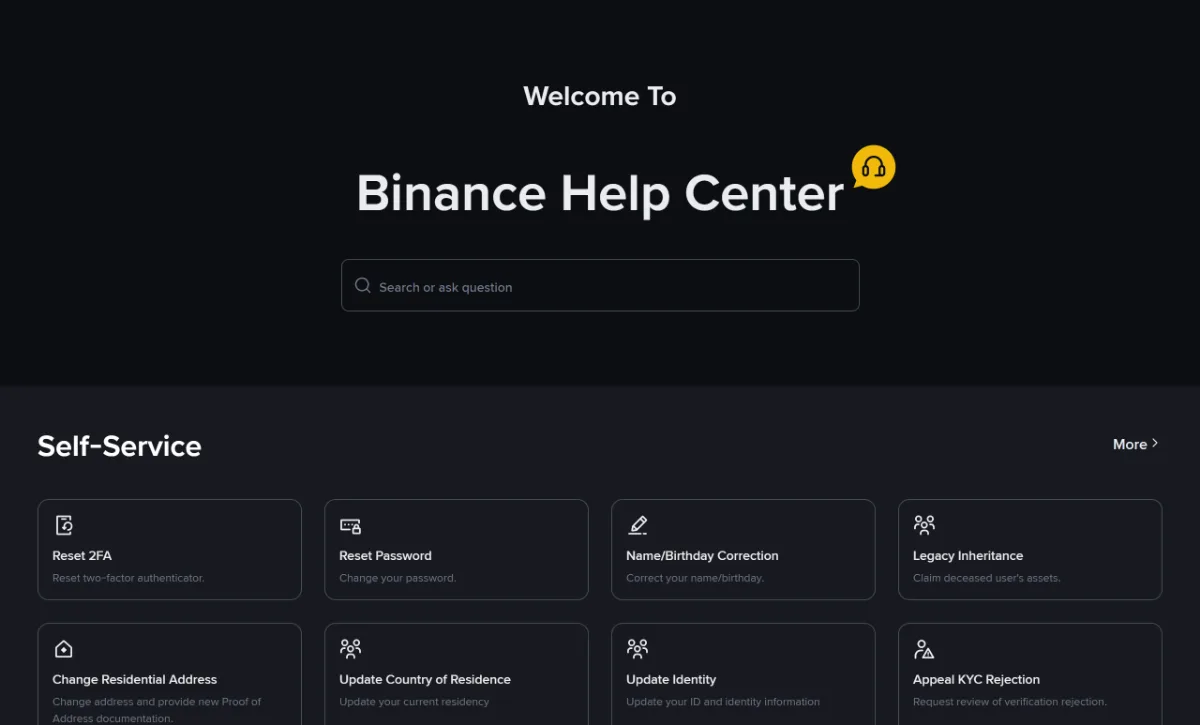
Self-Service option
Appeal KYC Rejection
This is the name of an option on the help page. It is not a decision about your own application.
binance.com/en/support, English, desktop, captured September 2026. The review option is last in the second row in this capture. Look for the label on the current page; its position may differ.View the original screenshot (new tab)Open chat through the confirmed Help Center. If automated replies do not resolve the issue, follow the current Unresolved, Not relevant or customer-service options. Binance's support instructions describe these steps; pressing one button is not a promise of an immediate human reply. Account-specific checks may require you to sign in to the intended account. Prepare:
- Website or app, and your device model
- Date, time and time zone of your latest submission
- The exact reason text from the notice or page (screenshots with your name, ID number and face covered)
- What you changed compared with the previous attempt
Only provide ID photos and numbers inside Binance's official verification flow, or through an official channel support explicitly directs you to. Never in third-party groups or direct messages.
Ask which action is needed
Explain whether you need the rejection reason clarified, a locked field corrected, a way to supply requested material, or a review of a decision. For example: “The notice mentions expiry, but this attempt's preview shows my valid replacement document. Which submission does the result concern, and should I use replacement or appeal?” Adapt the question to what actually happened.
If the reply repeats general photography advice, say which points you have checked and what remains unclear. You do not need to send an unchanged full set of documents or open another account to explain that the answer did not address your question. Provide additional images only through a verified official verification or appeal route when requested.
Keep the case or conversation reference if one is provided, together with any requested items and timing instructions. Asking for help does not itself change verification status. After completing an instructed action, check the same account's status again. If another notice arrives while you wait, identify which application it concerns before treating it as a new rejection.
Retake a photo or resubmit?
Why might retaking an ID photo fail to resolve the issue?
Retaking a picture can improve readability, while personal details, document selection and account ownership still need to meet the requirements. Read what the notice identifies and compare the submitted file with the original. Do not treat every rejection as a blurry photograph.
When should I stop resubmitting the same verification attempt?
Pause repeated submissions when the page asks you to wait, the reason is unclear, relevant checks make no progress, or no applicable correction route is available. If official instructions request replacement material, follow that request rather than applying an invented fixed retry limit.