Verification codes
Binance SMS Verification Code Not Received During Sign-Up
Check the number, receiving line and message filters, then use the page response to decide whether to wait, correct an entry or ask for help.
The page says a verification text was sent, but your phone shows nothing. Check the destination number and open the phone's messaging app first. A silent phone can mean no notification, a filtered message, a receiving problem or a request that did not complete; the checks below help tell them apart.
If a text is already present but its code is rejected, use verification code invalid or expired. Do not keep changing phone settings after you have found the relevant message.
Choose the check that matches what you see
| What you see | Where to start |
|---|---|
| The displayed number or calling code looks wrong | Read the number fields before requesting again. |
| The correct country or SMS option is missing | Check availability and the current registration choices. |
| No ordinary SMS arrives on this line either | Check SIM, reception and service |
| Other SMS arrives, but no Binance text is visible | Inspect message filters, then ask about verification-message delivery if needed. |
| The page reports a sending error or limit | Use the request checks; more inbox searching will not clear that error. |
You can start at the relevant section instead of repeating every check. Keep the current sign-up page open when possible, and avoid requesting from several devices while investigating the same missing text.
Is the number entered correctly?
Check where the form expects the calling code and phone number. If you already selected a calling code and the number field excludes it, enter only the part requested there. If the field asks for a full international number, follow its current example. Then compare the calling code and destination shown before sending with your own carrier records.
Select the calling code for the number you own. It does not change because you are travelling, and it is a different question from the country of residence used for identity verification.
- Compare the number with your own carrier or account records, including digits that are easily transposed.
- Check whether an autofilled number belongs to an old SIM or another line on the device.
- Inspect the destination shown before sending. If it is masked, compare the visible part without assuming the hidden digits are correct.
- For a format error, use the field instructions and your carrier's international-number guidance. Do not keep deleting or adding leading zeros until an unrelated number is accepted.
If part of the destination is masked, use the current step’s Back or Edit option to inspect your original entry. When the page only offers Resend, tell official support which step you reached and which part of the number is hidden, and ask how to confirm the destination. Keep the page available while checking so that you avoid repeated requests to a possibly incorrect number.
If the number is reported as already used, follow email or phone already registered and look for your own earlier account. If you continued through a provider, note which option you selected and the step you reached. Choose sign-in or contact-change help from the actual account status, rather than using the presence of a separate password as the deciding factor.
If the country or SMS option is missing
Binance's SMS troubleshooting article discusses coverage, signal, restarting the phone and other authentication options. We checked it on 19 September 2026. Some of its steps concern an existing account's security settings, so they cannot all be applied to an unfinished registration.
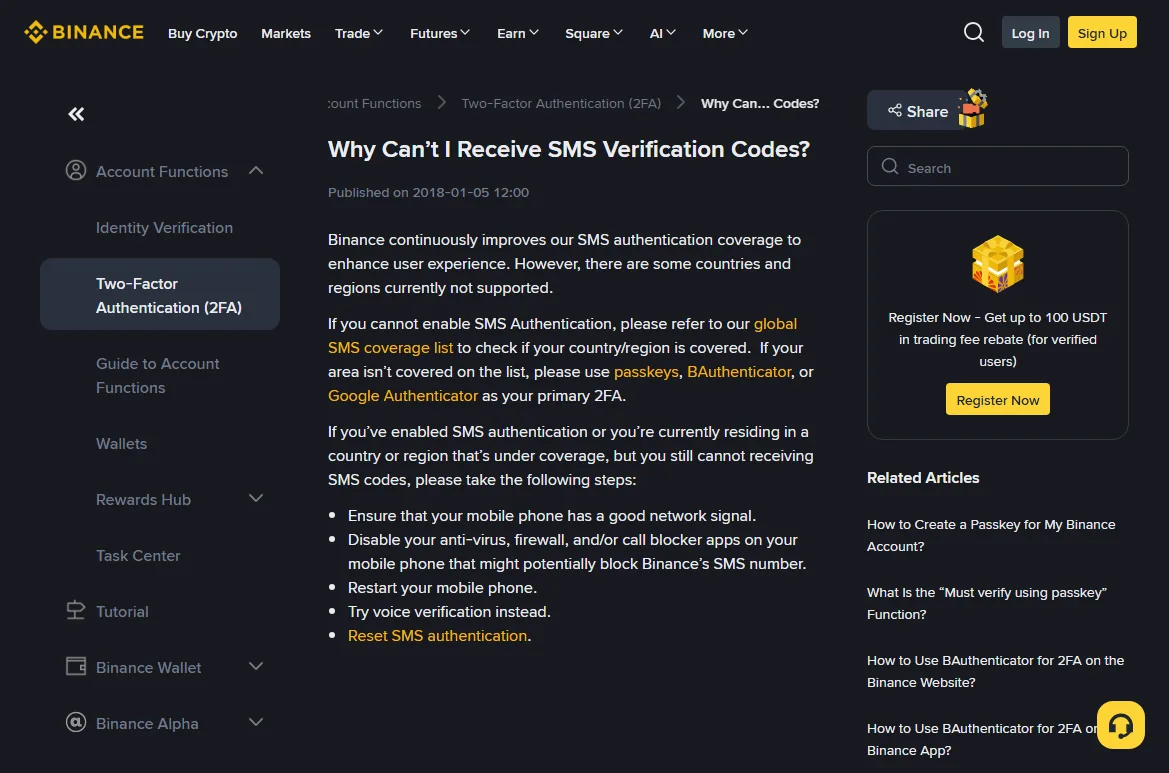
The separate supported SMS countries list was updated on 23 February 2026. Use it as a coverage reference. A country appearing there does not guarantee delivery to every number, establish your eligibility to register, or guarantee that your current flow offers phone registration.
If the relevant choice is absent or the page says the method is unsupported, keep that notice and ask about the options for your circumstances. Do not choose a different country or borrow its calling code to make the form advance. If email registration is actually offered, consider it only after checking the current account status and applicable registration requirements.
Look for a voice option on the current verification page. If one is offered for this step, follow its instructions. If none appears, ask official support which alternatives apply to your situation. If a help option starts a reset of an already linked SMS security method, confirm that it concerns your existing account before preparing the information required for that operation.
Check reception, Dual SIM and message filters
Check the line that should receive the SMS
First locate the phone with the SIM or eSIM for the destination number. Even if you opened Binance on a computer, tablet or another phone, check texts on that phone. If you already use message syncing and a second device shows nothing, check the original phone as well. Keep the registration page and compare the same destination number; you do not need to restart sign-up on the receiving phone.
Open the app that handles SMS on this phone and inspect its conversation list and the filtered folders described below. Do this even if the only thing missing is a sound, banner or lock-screen preview: the message may be present without a notification.
For a reception test, use an ordinary SMS sent to the exact number. A message delivered through iMessage, RCS or an internet chat app is not the same test. Ask the sender to check the delivery method instead of judging by the conversation's colour alone.
Google's Messages troubleshooting covers the default texting app, SIM, carrier support, plan, signal and airplane mode. Use the relevant checks for your phone; do not apply its MMS or group-chat reset instructions to a missing registration SMS.
- The test SMS is missing too: check both the test destination and the receiving line. Look for no-service, airplane-mode or account-service notices, and confirm with the carrier if the line cannot receive messages.
- The test SMS arrives: this line received that message. It does not prove that business verification messages follow the same route or cannot be blocked.
- The message is in the app but there was no alert: delivery has occurred for that message. Read its purpose and current validity before changing notification settings.
Dual SIM, roaming and a recently changed line
Find the registration number in your phone’s SIM or eSIM list, then check whether that line is enabled and whether a service warning is shown. On iPhone, Apple’s Dual SIM guide places the line settings under Settings, Cellular: select the relevant line and check Turn On this Line. Menu names can vary by region. The default data line is a separate setting; check the line belonging to the number that should receive this SMS.
Tell the carrier if you are roaming, recently transferred the number or replaced its SIM. Ask whether the receiving number is fully activated and whether the plan supports SMS and verification messages at your current location. Record which line the answer concerns. Internet access may use Wi-Fi or a different SIM, so confirm the receiving number’s service separately.
You do not need to erase an eSIM, reset every network setting or purchase a roaming add-on as an initial experiment. Read the current service notice and ask what the carrier has confirmed before making a change that could remove connectivity or cost money.
Look for filtered or blocked messages
Open the message-filter menu and inspect Unknown Senders, Spam, blocked conversations and any block log offered by your app. Look around the time you requested the code. If you find a message, note its folder and check its purpose. If you find nothing, keep that result for support and continue with the receiving line and the page’s request response.
- iPhone: look in the filtering menu and any Unknown Senders or Spam folder available in your version. Apple's iOS 26 instructions describe opening Spam from the conversation-list filter and moving a wrongly classified message back with Not Spam. Older versions may use different labels.
- Google Messages on Android: open the profile or menu options and inspect Spam & blocked. Google's unblocking instructions explain selecting a conversation and unblocking it. Other Android messaging apps can have different menus.
- A separate security or blocking app: inspect its recent block log. Change only a relevant rule after you understand what it blocked; do not switch off all phone protection because a code is missing.
Expand the full message and check whether it concerns registration, login or another verification step. Compare the receiving number and any request time with your current attempt. If the purpose matches and the code is still valid, enter it on the official verification page you opened yourself. Read the complete message before using a number from a preview, and keep the code private from unsolicited helpers.
If earlier attempts arrive together, do not test each code in turn. Receipt order can differ from request order. Use the current validity instructions and the invalid-code checks if you cannot identify a usable message.
What did the verification page report?
After requesting, note the time and whether the page shows Sent, a countdown, Sending failed or a restriction. For Sent, open the messaging app for the destination number and check for the text. For an error or restriction, use the matching row below. If you made several earlier requests, keep their responses separate so you can compare messages that arrive later with those attempts.
| Page response | Action |
|---|---|
| Sent notice or countdown | Respect the displayed waiting period and complete the receiving checks. Do not keep requesting while older messages may still arrive. |
| Sending failed | Keep the exact error. Use any permitted retry carefully; a failure now does not tell you whether an earlier request succeeded. |
| Too many attempts or try later | Stop repeated requests. Follow the actual notice and attempt-limit guide; do not guess a universal unlock time. |
| No visible response | Look for an unfinished challenge or field warning. If the button still does nothing, use registration page troubleshooting. |
Binance's 2FA code guidance suggests a 10-minute wait for delayed codes and another network or device for a sending error. Treat these as suggestions for the described problem, subject to the current page's instructions. Neither a ten-minute delay nor a restarted phone proves that a restriction has ended.
Check the website connection and the receiving line separately. For a failed web request, try another available connection as the page instructs. For a receiving phone with no service, inspect that SIM or eSIM and ask the carrier to check it. When returning to Binance, confirm the original account or registration method and destination number before deciding whether another attempt is permitted.
Who to ask when the text is still missing
If ordinary SMS is also failing, ask the carrier to check the line first. If ordinary SMS works but verification messages do not, explain that difference and ask whether a relevant message category or sender is being blocked. Do not claim the sender is international or a short code unless you have that information.
If the carrier asks for a sender number that you cannot see because no text arrived, say that plainly. Give the receiving line and approximate request time instead, and ask what information they can check. Keep any case reference for follow-up with Binance; do not copy an unrelated sender from an old message.
If the page reports a sending error, lacks the correct option, or the problem persists after the relevant checks, contact Binance through its confirmed Help Center. Explain whether you are registering, continuing a provider-created account or verifying an existing contact. If you cannot sign in, say so and use the help available for that situation.
Prepare the calling code, carrier, phone system and messaging app, approximate request time and time zone, page response, and results of the SMS and filter checks.
Mention roaming, a recent number transfer or SIM replacement when relevant. Provide the full number only when the official process needs it; never give a password or verification code to a helper.
Switching to email is a possible choice only when the current registration flow offers it and it fits your account situation. It does not remove regional requirements or automatically merge with an account already created using the number. The registration guide explains the available methods; email delivery help covers a missing email code.
Use a contact you control long term. Public code-receiving websites and borrowed numbers leave account communications in someone else's hands. After help or a retry, check the actual page result: finding a text, passing its verification step and finishing registration are different outcomes.